
At Scotia-Glenville, we provide students with engaging and rigorous academic experiences designed to reflect real-world demands. Our comprehensive, locally-developed curriculum is implemented across all grade levels, focusing on the integration of core knowledge with crucial 21st-century competencies, including collaboration, communication, problem-solving, and critical thinking. The faculty and administration are committed to utilizing modern tools for teaching and learning, dedicated to helping every student reach their maximum potential.
Quick Links
- Strategic Planning & Investment: Smart Schools Bond Act & Tech Plan.
- Data Privacy & Security: Software list and Parents’ Bill of Rights.
- Policies & Forms: AUPs and Chromebook agreements.
- Technology Support: How to get support, basic troubleshooting, and help guides.
- Digital Citizenship: Common Sense Media and safety resources.
- Internet Safety & Talking to Your Kids
Strategic Planning & Investment
- Instructional Technology Plan (2022-2025): Our current roadmap for integrating technology into the classroom to enhance student outcomes.
- Smart Schools Bond Act (SSBA): This New York State initiative provides vital funding to improve educational technology and infrastructure.
- Our Commitment: Scotia-Glenville uses these funds to provide equitable access to modern tools, including classroom upgrades, high-speed broadband, wireless infrastructure, and security enhancements.
- Community Involvement: We invite community members to review our Smart Schools Investment Plan and learn more through the NYS Education Department.
Data Privacy & Security
Protecting student and staff information is a top priority. We strictly adhere to New York State regulations to ensure a secure digital learning environment.
Software & Data Privacy Agreements
Scotia-Glenville is a member of the Student Data Privacy Consortium (SDPC), a statewide initiative that helps districts manage and share information regarding the software and online services used in classrooms.
- Transparency: Our district maintains a public listing of all approved applications and the specific privacy agreements held with each vendor.
- Resources: Students, staff and community members can explore our approved software and digital tools list to see how we protect student data.
Parents’ Bill of Rights
The Parents’ Bill of Rights for Data Privacy and Security outlines our commitment to protecting student, teacher, and principal data. Per New York State Education Department (SED) guidelines, this document ensures transparency regarding:
- How data is used and stored.
- Encryption and security precautions.
- Contractor and subcontractor compliance with security requirements.
- Data disposal protocols after a contract expires.
- Procedures for challenging the accuracy of collected data.
Policies & Forms
To ensure safe and responsible use of technology, all users must adhere to the following Board of Education policies:
| Policy Number | Resource Name |
| 4355 / 4355-R | Internet Safety & Content Filtering Policy and Guidelines |
| 4360 / 4360-R | Staff Use of Computerized Information Resources & Regulation |
| 5350 | General Internet Use Policy |
| 5355 / 5355-R | Student Acceptable Use Policy (AUP) & Guidelines |
Chromebook Agreements
- For Students/Families: Student and Family Chromebook Agreement | Student Access Release Form (5355-F)
- For Staff:Staff Chromebook Agreement | Staff Access Release Form (4360-F)
Technology Support
Who to Call, Help Guides, and Basic Chromebook Troubleshooting
If you are experiencing technical difficulties, please follow the pathways below to ensure your request is handled by the correct team.
| For Students | For Parents & Families | For Staff | |
|---|---|---|---|
| Help Guides | 📁SchoolTool Student Help Guides | 📁About SchoolTool | 📁ParentSquare for Staff |
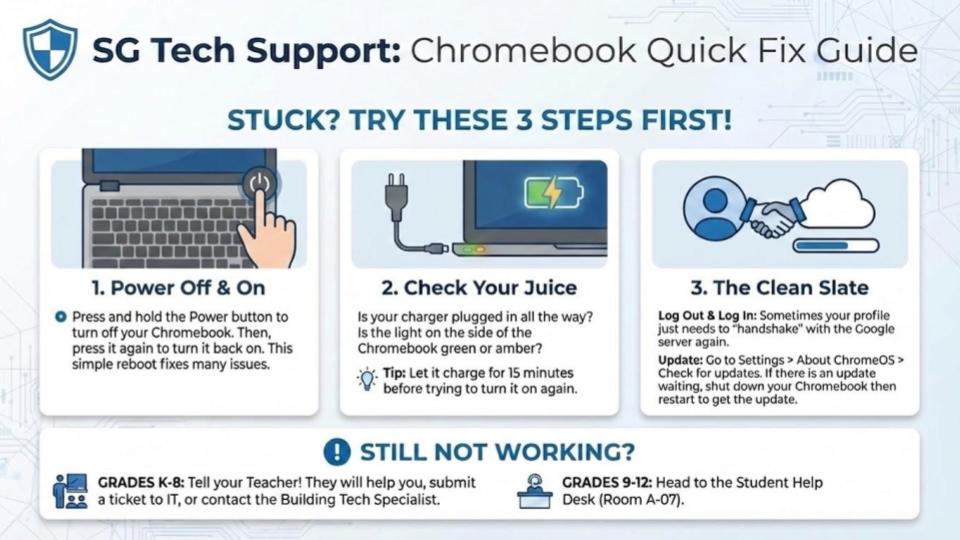
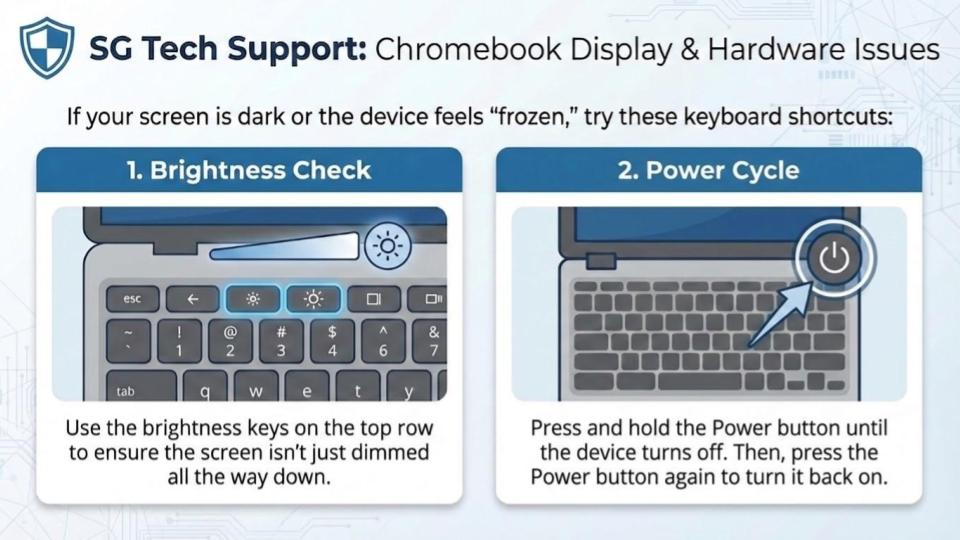
| Chromebooks and Hardware | Grades K–8 Chromebook Help: Report issues to your Classroom Teacher. The teacher will contact the IT Help Desk or Building Instructional Tech Specialist.
Grades 9–12 Chromebook Help: Visit the Student Help Desk in Room A-07 at the High School. Grades K-12 Chromebook Loaners: Each building has their own cart of Chromebooks to loan to a student who needs to borrow for the day. This is typically reserved for students whose Chromebook is temporarily being repaired. |
Technical Issues: Submit a ticket via the IT Help Desk by logging into SG Classlink and clicking “Help Desk”. | |
| SchoolTool | For grades/ assignments, contact the teacher or counselor. | SchoolTool Support: For login issues, email . For grades/assignments, contact the teacher or counselor. Note: When emailing support, include the Student’s Full Name, Grade, and School Building |
|
| ParentSquare | ParentSquare Support: To update contact info, email . Note: When emailing support, include the Student’s Full Name, Grade, and School Building. |
||
| Instructional Tech | Instructional Support: Contact your instructional tech specialist for integration ideas or 1:1 software/ hardware help.
Tech Requests: Access the Internal Technology Website for TOP request forms and resources. |
Instructional Tech Specialists List for Staff Support
| School | Instructional Tech Specialist |
| Glendaal | Serena Barclay |
| Glen Worden | Brett Campbell |
| Lincoln | Jeff Denney |
| Sacandaga | Brendan Swider |
| Middle School | Deb Byrne |
| High School | Liz Fawcett |
Digital Citizenship: Resources for Families
At Scotia-Glenville CSD, we believe that staying safe and responsible online is a shared journey between school and home. Use the resources below to start conversations and set healthy digital habits as a family.
📚 Top Trusted Resources
- Common Sense Media – Parents’ Portal
- What it is: The gold standard for families.
- Highlights: Independent reviews of movies, games, and apps; “Parents Need to Know” guides for trending platforms (like TikTok or Roblox); and advice on topics like cyberbullying and screen time balance.
- Google: Be Internet Awesome (Families)
- What it is: A fun, interactive way to learn the fundamentals of digital safety.
- Highlights: Play Interland with your kids—a web-based game that teaches them how to “Share with Care” and “Don’t Fall for Fake.” You can also download the Family Guide for discussion prompts.
- ConnectSafely Parent Guides
- What it is: Deep-dive “manuals” for specific apps and issues.
- Highlights: Short, “Quick-Start” guides and full-length handbooks on everything from Instagram and Snapchat to AI and mental health.
🏠 Healthy Habits at Home
- Family Media Agreement (Common Sense Media)
- A printable contract that parents and kids can sign together to establish rules for where, when, and how devices are used (e.g., “No phones at the dinner table”).
- FOSI: 7 Steps to Good Digital Parenting (Family Online Safety Institute)
- A simple roadmap for parents, ranging from “Talk with your kids” to “Be a good digital role model.”
🛡️ Safety & Privacy Tools
- NYS Office of Children and Family Services: Online Safety
- New York State’s dedicated hub for parents, including checklists for different age groups (6-10, 11-13, and Teens).
- Google Family Link
- A free tool for parents to set screen time limits, manage app downloads, and view device activity on Android and ChromeOS devices.
💡 Quick Tips for Parents:
- Be Curious, Not Furious: Ask your children to show you their favorite games or YouTube creators. Understanding their digital world makes them more likely to come to you if something goes wrong.
- Verify Before You Buy: Before downloading a new app, check its age rating and “Privacy Facts” on Common Sense Media.
- Model the Behavior: Show your kids what healthy tech use looks like by putting your own phone away during family time.
Internet Safety: Terms Every Parent Should Know
The digital world moves fast, and new slang or technical terms appear every day. Here is a quick guide to the most common terms you might encounter while monitoring your child’s digital life.
🛡️ Common Risks & Behaviors
- Cyberbullying: Using digital devices, sites, or apps to intimidate, harm, or upset another person. This includes spreading rumors, sharing private photos without consent, or exclusionary behavior in group chats.
- Digital Footprint: The “trail” of data a person leaves behind on the internet. This includes social media posts, comments, “likes,” and even search history. Important Note: A digital footprint is permanent and can be seen by future colleges and employers.
- Phishing: A scam where a user receives a fake email or message designed to trick them into giving away passwords or personal information.
- Grooming: When an adult builds an emotional connection with a minor online to gain their trust for the purpose of exploitation.
📱 Social Media & Privacy
- Finsta / “Spam” Account: A “Fake Instagram” (or secondary account) where students often post more private or unpolished content for a smaller, select group of friends, hidden from parents or the general public.
- Oversharing: Posting personal details that should remain private, such as a home address, current location, or school name.
- Two-Factor Authentication (2FA): A security layer that requires two forms of identification to access an account (e.g., a password plus a code sent to a phone). We highly recommend enabling this on all personal accounts.
🤖 New & Emerging Tech
- Generative AI: Tools like ChatGPT or Gemini that can create text, images, or videos. Students should be taught to use these ethically and to verify the information they provide, as AI can sometimes “hallucinate” (provide false info).
- Deepfake: An image or video that has been digitally altered—often using AI—to replace one person’s face or voice with another’s, making it look like they said or did something they didn’t.
- Microtransactions: Small in-app purchases (common in games like Roblox or Fortnite) that can quickly add up on a linked credit card.
💬 Conversation Starters for Home
- “What is one thing you saw online today that made you laugh? Was there anything that made you feel uncomfortable?”
- “If someone sent you a message asking for your password or a picture, what would you do?”
- “Do you know what our ‘Family Rules’ are for downloading a new app?”